Epic Secure Chat workflow
Using SIC Consult Templates in Secure Chat
Epic Secure Chat fields often do not behave like standard note editors. If a normal dotphrase will not expand, use the magnified text field or a Dragon Auto-text version of the consult message.
Quick answer
Two Practical Ways to Enter the Consult Question
- Copy/paste: copy the SIC consult template, right-click the Epic Secure Chat message field, choose Magnify field, then paste and edit in the larger text box.
- Dragon Auto-text: build a Dragon Auto-text version of the SIC template using square-bracket default text, such as
Callback: [555-555-5555], instead of Epic wildcards. - Finish fields: after the bracketed fields are filled or accepted, use Field Complete on the PowerMic or PowerMic Mobile to remove the remaining square brackets.
Dragon-ready format
Consult Message Template
Reason for Consult: [brief reason]

Clinical question: [what decision are you asking the consultant to help with?]

Relevant context: [diagnosis, timeline, exam, imaging, labs, treatment already started, and what is pending]

Timing/disposition: [why this needs discussion now, before discharge, during admission, or in follow-up]

Callback: [555-555-5555]
Why square brackets
- Epic wildcards such as
***are useful in note contexts, but they may not behave predictably inside Secure Chat. - Dragon Auto-text treats bracketed text as a field with default text. The default reminds the user what to say or type, then can be replaced or accepted.
- Use real local callback practices and avoid pasting protected health information into any nonclinical tool or external page.
Option 1
Copy, Magnify, Paste
- Open the relevant SIC specialty page and copy the consult message.
- In Epic Secure Chat, right-click in the message field and choose Magnify field.
- Paste the template into the magnified field.
- Edit the bracketed text into the actual consult question, specialty-relevant facts, timing, and callback number.
- Review the final message in Epic before sending.
This is usually the fastest fallback when dotphrases do not expand in Secure Chat.
Option 2
Use Dragon Auto-text Instead of Epic Wildcards
- Create a Dragon Auto-text entry for the SIC consult format you use most often.
- Replace Epic wildcards with square-bracket default text:
[brief reason],[consult question],[pending workup],[555-555-5555]. - Insert the Auto-text into the Secure Chat field or magnified field.
- Move through the bracketed fields, replacing each default with the real text.
- Use Field Complete when finished so Dragon removes any remaining square brackets.
Example: write Callback: [555-555-5555], not Callback: ***, in the Dragon Auto-text version.
PowerMic
Removing the Square Brackets
After the Dragon Auto-text fields are complete, use the Field Complete control to accept the field text and remove the brackets. The red arrows below point to the PowerMic button most commonly mapped to that action.
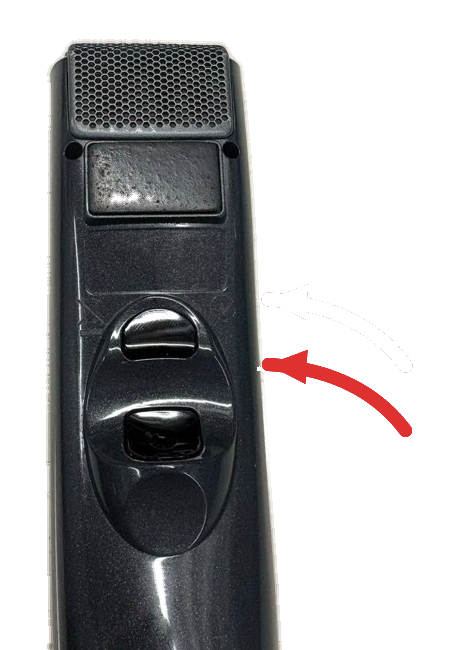
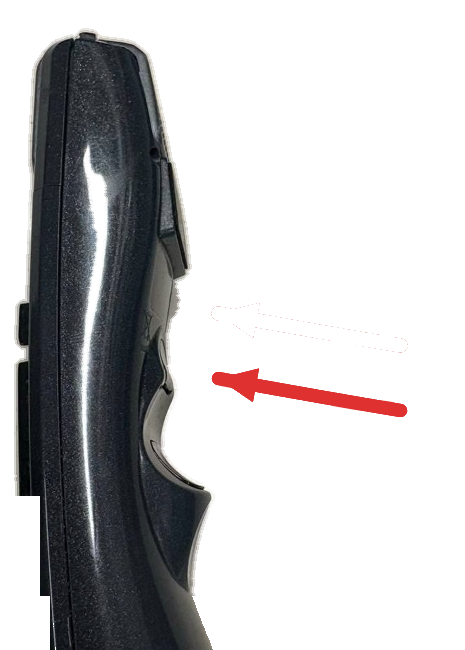
Local Dragon profiles can map this differently, so confirm the exact button assignment on your workstation if Field Complete does not clear the brackets.
FAQ
Common Secure Chat Problems
Why not just use the Epic dotphrase?
Some Secure Chat fields do not expand dotphrases reliably. The magnified field and Dragon Auto-text workflows give clinicians a more predictable way to enter a structured consult question.
Should the SIC website include patient details?
No. Use SIC to copy the blank structure only. Patient-specific details belong in Epic or another approved clinical system.
What if Field Complete does not remove the brackets?
Check the local Dragon button mapping or use the Dragon command/control your institution assigns to field completion. PowerMic and PowerMic Mobile layouts can vary by configuration.
Educational workflow reference only. Epic, Dragon, PowerMic, and PowerMic Mobile behavior can vary by institution, version, local profile, and security configuration. Follow local policies for secure messaging, documentation, and protected health information. SIC does not replace clinical judgment, local guidelines, institutional referral pathways, or recommendations from the relevant specialty department. See disclaimer and how SIC works.